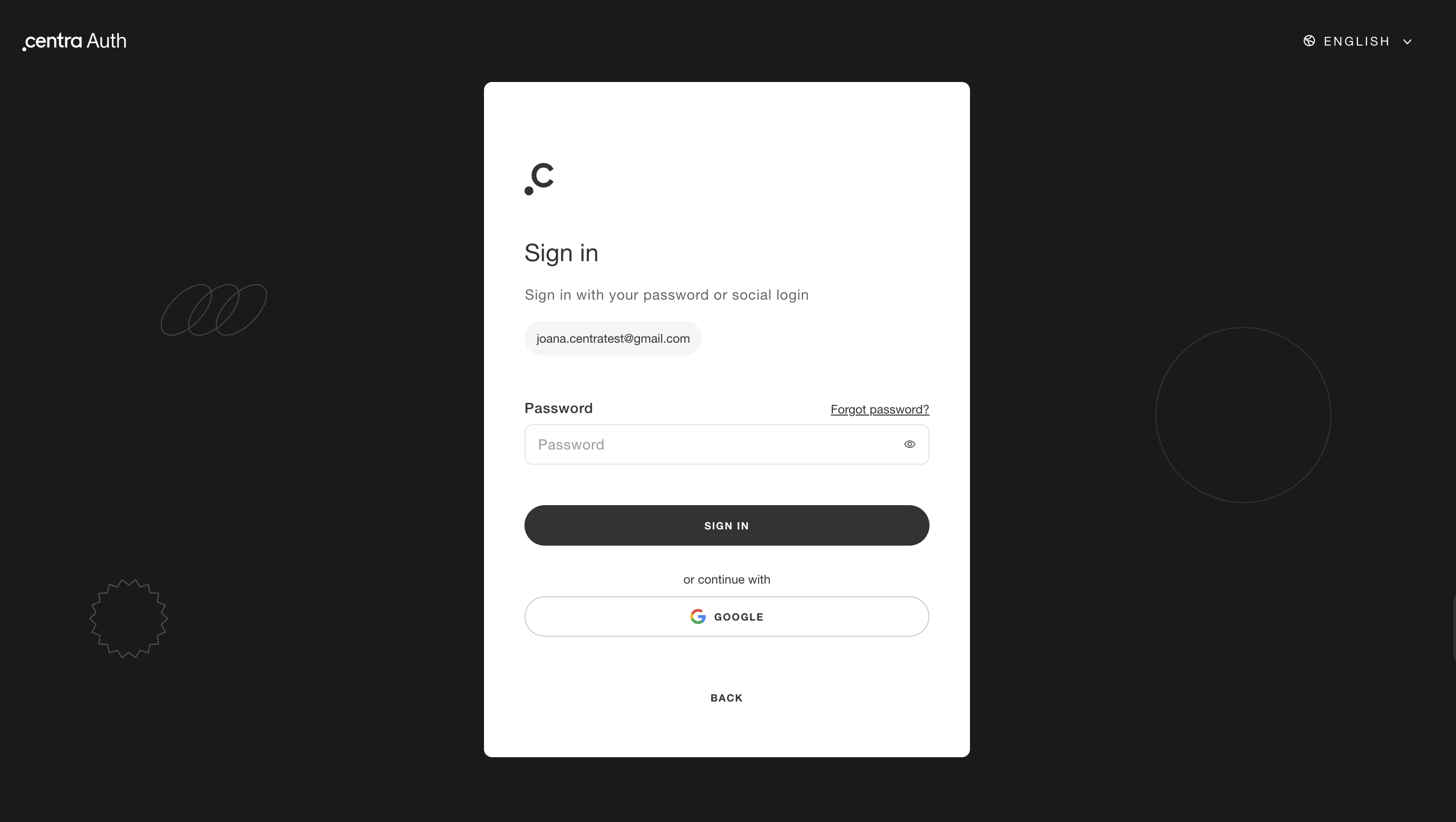
Introducing Centra Auth
For brands (brand admins, sales representatives)
Overview
Centra Showrooms are migrating to Centra Auth, our new identity provider.
This update improves security and provides a single login experience for all users, including internal employees, sales representatives, and external buyers.
We are starting in Showroom, with the goal of using one set of credentials to access all Centra-powered environments, including the Centra admin panel.
When it comes to Showroom: because many of your external partners may not be familiar with the "Centra" brand name, your role as an Admin is to oversee this transition and ensure everyone under your brand umbrella is prepared and feels comfortable to trust the Centra Auth system as the identity provider.
What is changing?
The way users browse collections in Showroom remains exactly the same. The only change is how they will log in. User rights, collection access, pricing, and permissions are not affected and do not require any action from your team.
What is the timeline?
The update will be rolled out in phases.
- Initial phase: All users will be invited to update their login, but this will be optional.
- Hard rollout phase: Starting in January 2027, updating the logins to Centra Auth will be required to use any Centra Showroom.
Who is affected?
The move to Centra Auth applies to every user associated with your brand:
- Internal Employees: Staff members who manage the backend or use the Showroom for internal purposes.
- Sales Representatives & Agents: Professional representatives who may manage multiple accounts or territories.
- Buyers: Your retail partners who log in to browse and place orders.
How does the migration process work?
Any Showroom user will have to go through the following steps to update their login.
Before you start, please note the following requirements:
- Email inbox access: Please make sure that you have access to the inbox of the email address that you use as your login. Otherwise, you won’t be able to proceed.
- No shared logins: For security and auditability reasons, we strongly recommend that each individual has their own login.
Step 1: Start the update in Showroom
Go to the Showroom login page and enter your email address and current password. Once in the Showroom, you will see a notification that your account is ready to be updated. Select “Send activation email” to begin.

You can also choose to click “Not now”. You will continue to receive reminders, and the option to start the update will always be available in your login settings. Note that after January 2027, this will become mandatory.
Step 2: Verify your email
You will receive an email with a verification link.
- Open the email
- Click the link to continue
If you do not see the email, check your spam folder. If the email doesn’t appear, send the activation link again. If the problem persists, please contact support@centra.com.
Email example:
Subject: Set up your Centra Auth login for %showroom_name

Hello Jane Doe,

We’re moving all Showroom accounts to Centra Auth for improved security.
This only needs to be done once.

How to activate: Please click the link below to verify your email,
then choose your preferred login method (password or social login).

[ Set up my login ]

This is a one-time link, valid for 48 hours.
Step 3: Choose how you want to sign in
After verifying your email, you can:
- Create a new password, or
- Choose a social login such as Google or Microsoft
New Password Requirements:
- Minimum of 14 characters (max 72)
- Not similar to the email address
- Avoid common patterns (e.g., "password" or "123456")
After the migration
The “Reset password” flow will change
- Admins can no longer insert passwords in AMS, as this does not meet security standards
- Users must proceed with password recovery through Centra Auth
The "Welcome to Showroom" emails
1. If a buyer already has a Centra Auth identity:
Subject: Welcome to the [Company name] Showroom

Hello Buyer Name,

Access to [Company name] B2B Showroom has been granted.

You will be redirected to Centra Auth, where you can sign in
using your existing credentials.

[ Sign in to Showroom ]
2. If a buyer does not have a Centra Auth identity yet:
Subject: Welcome to the [Company name] Showroom: Activate your account

Hello Buyer name,

Your account for the [Brand] Showroom is ready. To get started,
please click the button below to set your password.

[ Activate Account ]
Centra Authentication in Showroom
Enforce multi-factor authentication (MFA) for Showroom buyers, sales representatives, and administrators to secure accounts. When enabled, users must authenticate via One-Time Password (OTP) or code from an authenticator app.
Buyers and users must migrate to Centra Auth before this feature is enabled. Buyers and users can use one login credential across multiple Showroom brands. If their email is already migrated to Centra Auth, they do not need to create a new password when added to a new brand.
How to set up Centra Authentication in Showroom
Enforce MFA for Buyers
- In Wholesale, go to Accounts.
- Select the buyer.
- Set Enforce MFA on login to Yes.
- Click Save.
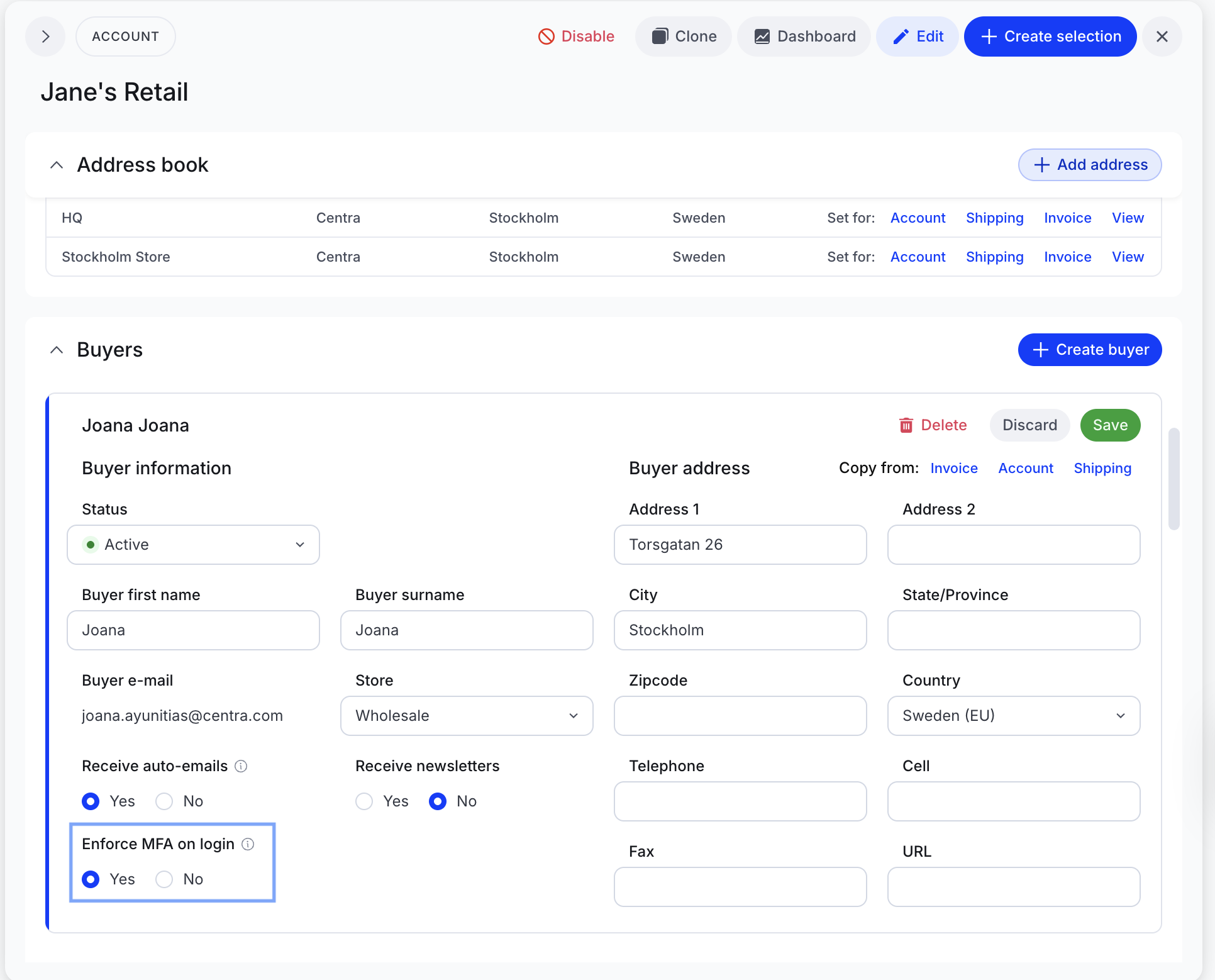
Upon entering their credentials in the Showroom, buyers will receive an email OTP to complete login.
Enforce MFA for Administrators and Sales Representatives
- Go to System > Users.
- Select the user and scroll to the Security section.
- Set Force MFA to Yes.
- Click Save.
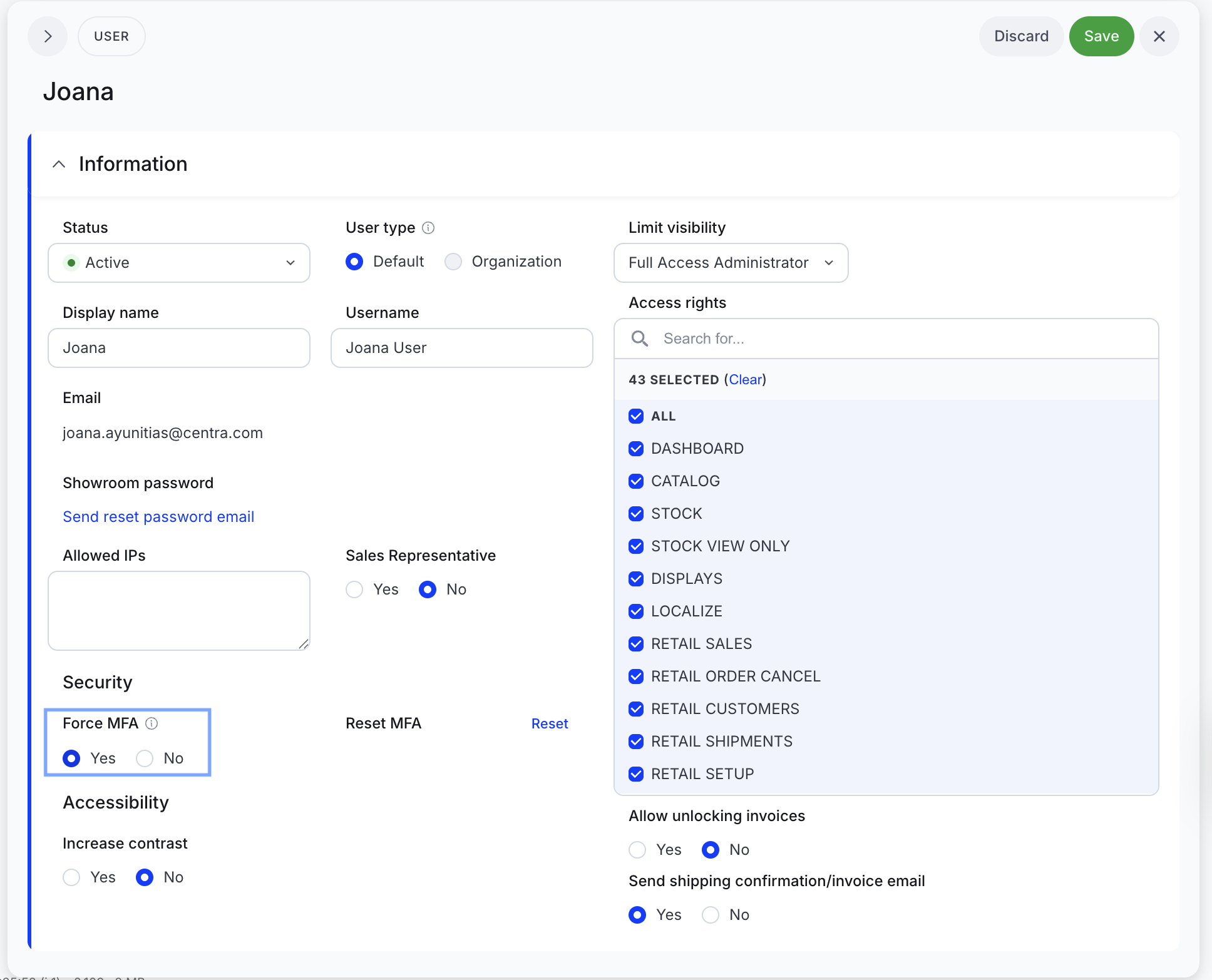
When users log in to the Showroom with their email address and enter their password, an email containing an OTP will be sent to their inbox.
This setting applies to both the Showroom and the Centra admin. If enabled, users must also use MFA in the Centra admin to maintain access. Read here to learn more about activating MFA in Centra admin.
Set up an Authenticator app
Showroom users can configure an authenticator app anytime. If MFA is enforced to the users, the app replaces email OTPs. If MFA is not enforced, it adds an optional security layer for the users.
- Log in to the Showroom.
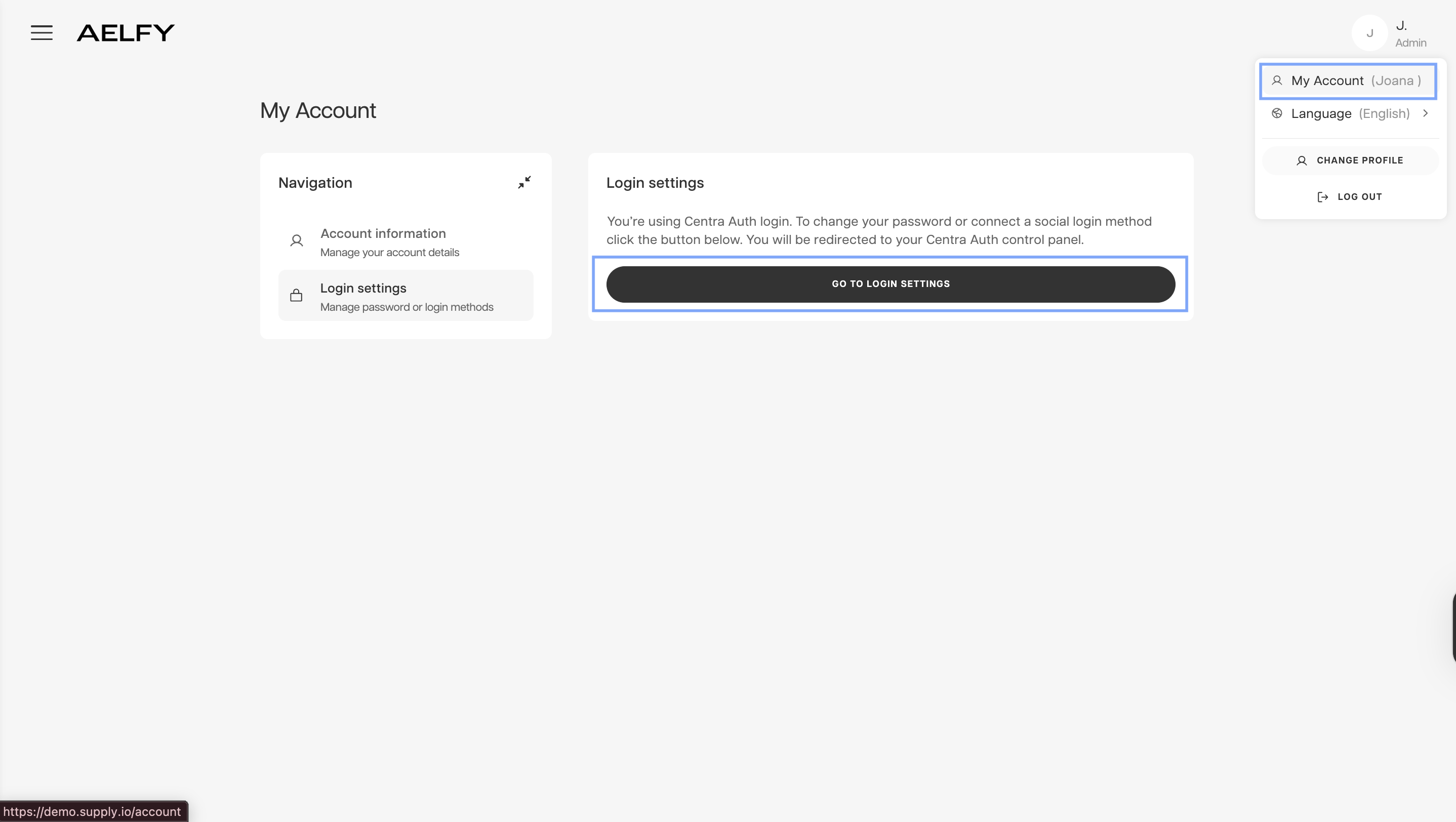
- Navigate to the login settings using one of these paths:
Click the hamburger menu > My Account > Login Settings > Go to Login settings.
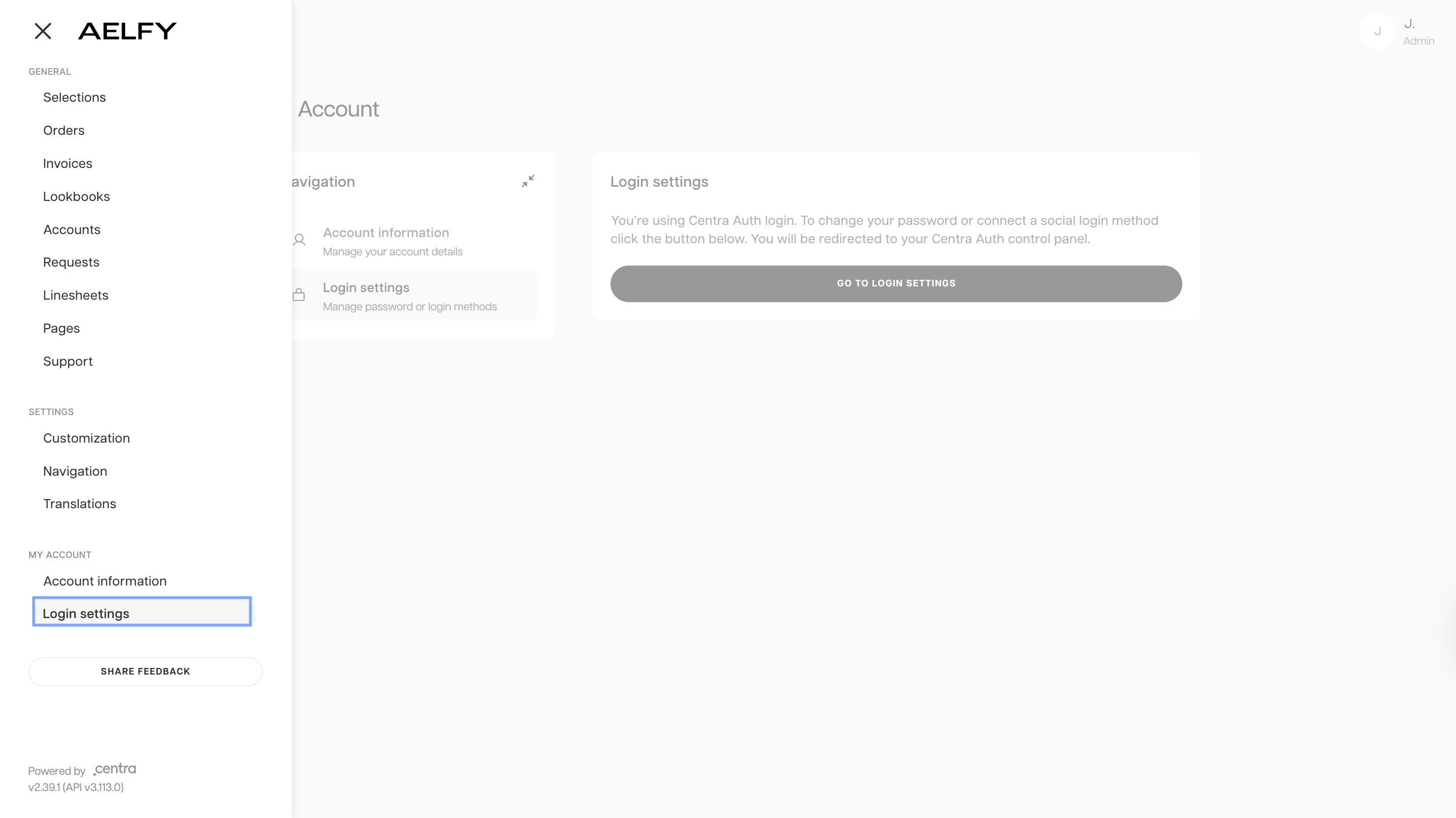
- Click the top right button > My Account > Login settings > Go to Login settings.
- Select Activate Authenticator App (MFA) in the pop-up window to generate a QR code.
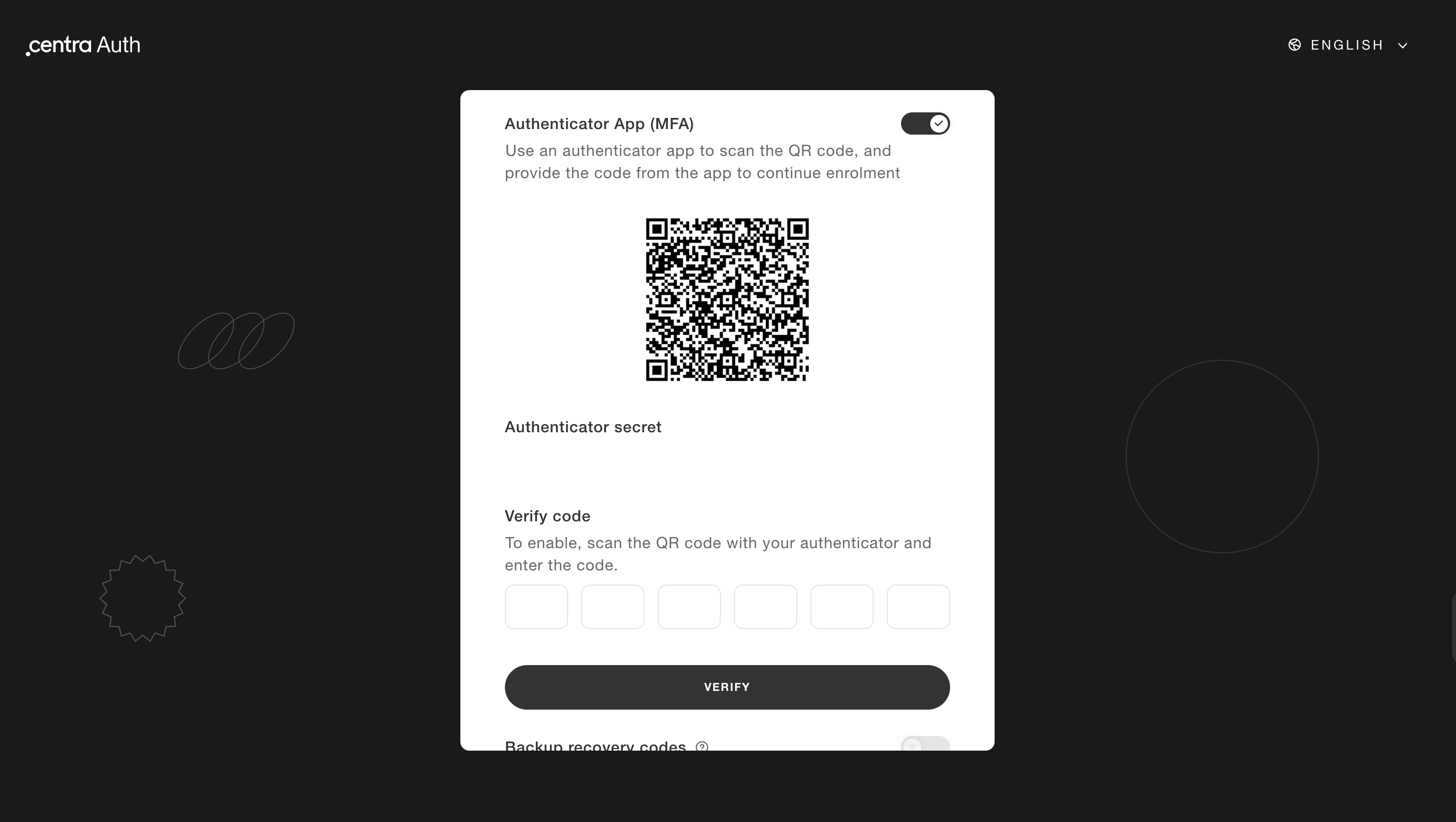
- Scan the QR code with an authenticator app.
- Select Backup recovery codes to ensure account access if the MFA device is lost.
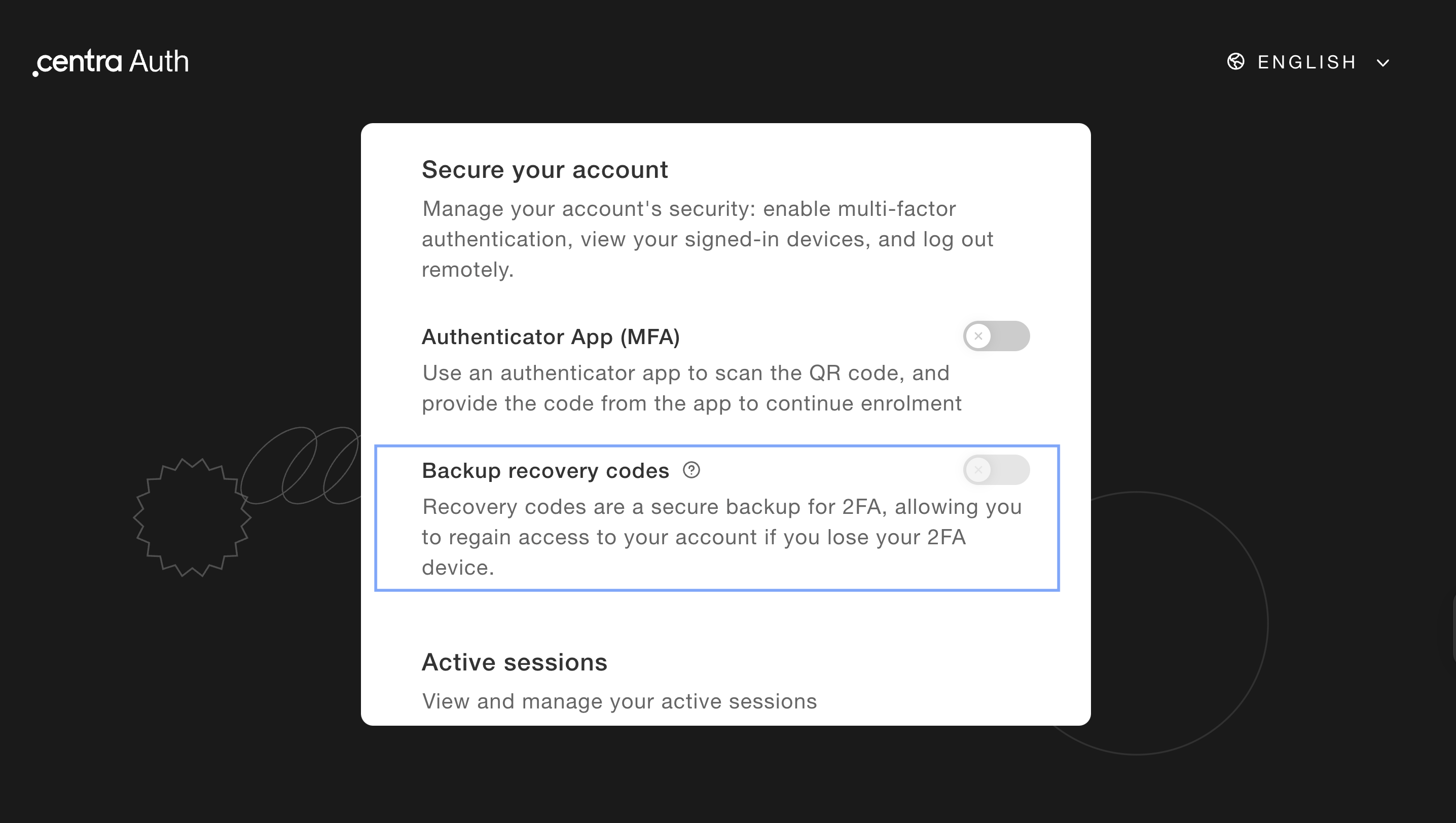
Centra Auth links your email address to a single profile across all brand showrooms. If you activate MFA in one showroom, you must enter an MFA code when logging in to any other brand's showroom.
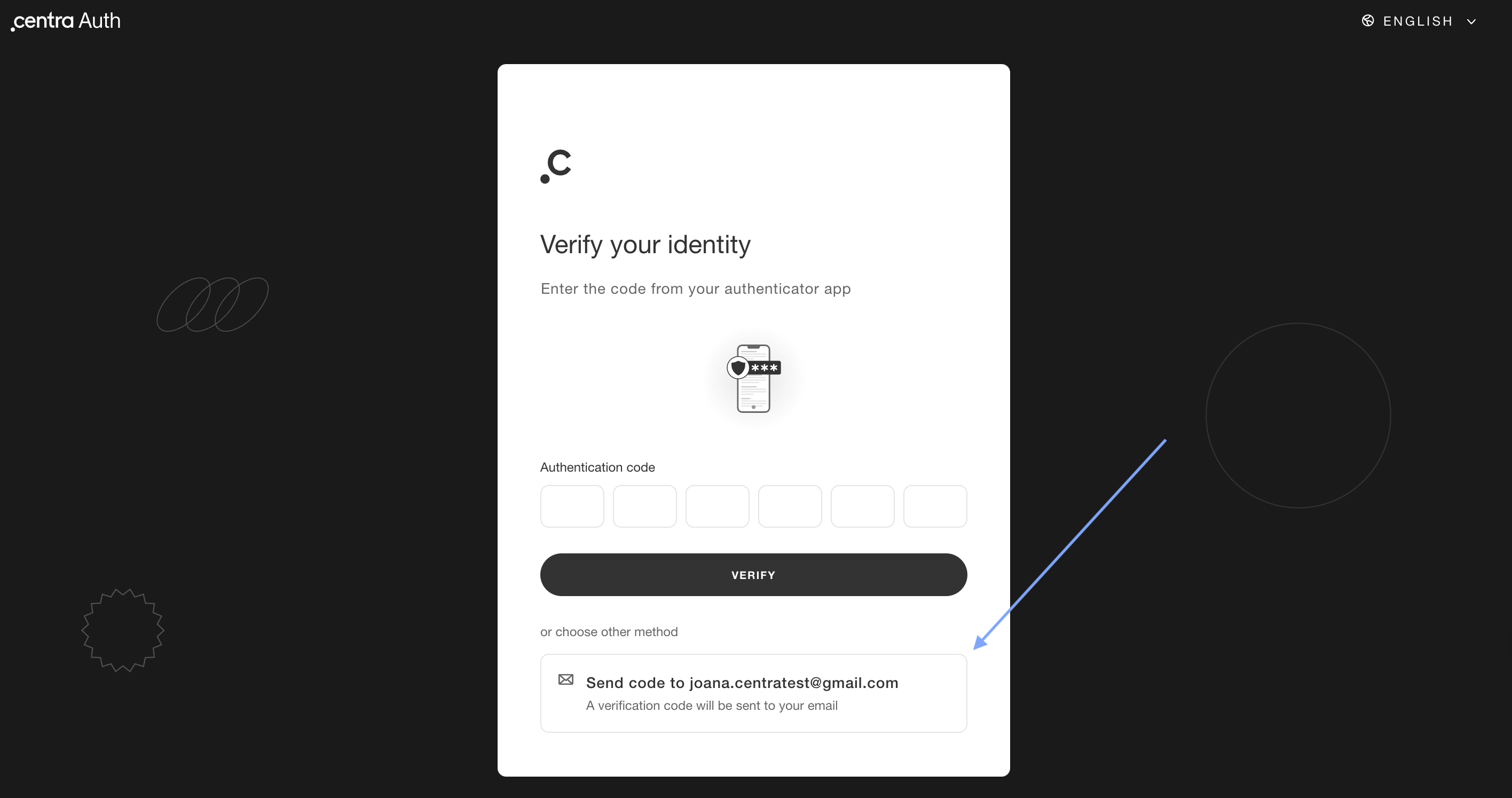
Lost device with no recovery codes
If you lose your authentication device and backup recovery codes, you can click Choose other method > Send code to your e-mail address on the Centra Auth login screen.
Login without a password
Buyers, administrators or sales representatives can bypass password entry by linking a Google or Microsoft account. You can do this by:
- Linking accounts in the Connect accounts section of the Centra Auth configuration page
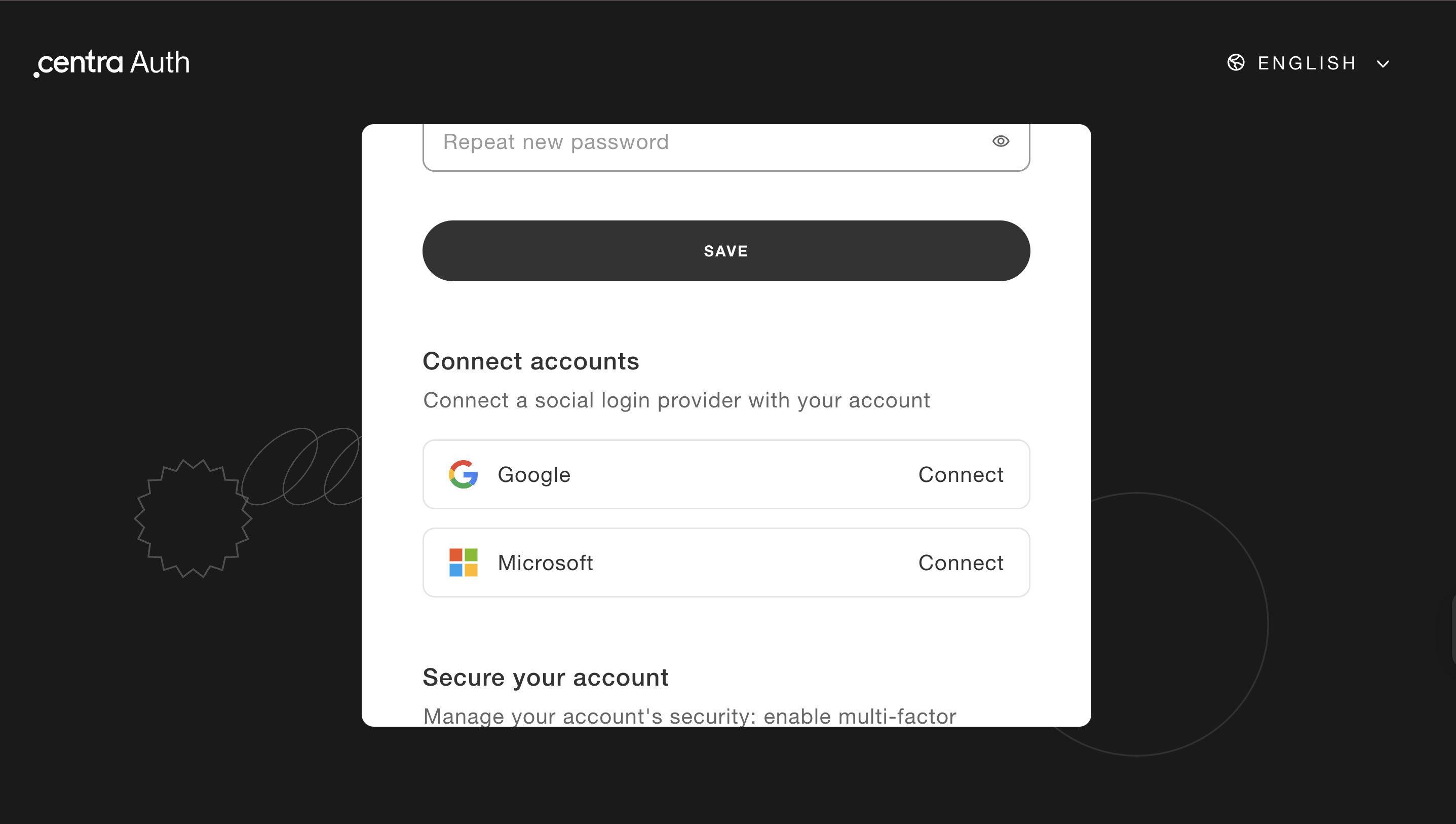
- Clicking Continue with Google or Continue with Microsoft on the Centra Auth login page.